-
Author: Anindita Barik
-
Updated Date: Jul-15-2026
-
Views: 2 Min Read
Meta Business Suite lets Indian brands manage Facebook and Instagram from one dashboard — scheduling posts, unified messaging, and basic analytics. This guide covers the correct account hierarchy, step-by-step setup, common mistakes like over-adding team members, and where Business Suite falls short (deep analytics, ad complexity, content design). Learn when to use Meta Business Suite versus Ads Manager or native apps, plus real fixes for scheduling glitches, timezone errors, and permission issues brands hit after setup.
Meta Business Suite is Meta’s free business management platform that allows businesses to manage their Facebook and Instagram accounts from a single dashboard. It helps you create and schedule posts, respond to messages and comments, monitor performance, manage ads, and collaborate with team members without switching between multiple apps.
Using Meta Business Suite streamlines social media marketing by centralizing content publishing, audience engagement, analytics, and account management. Whether you’re a small business or a marketing team handling multiple brands, it saves time, improves workflow, and helps maintain a consistent presence across both Facebook and Instagram. It’s one of the most practical tools for executing a social media optimisation strategy consistently — consistency being the one factor that separates brands that grow from brands that plateau.
The Problem We Keep Seeing
Brand runs a Facebook page. Then they launch Instagram. Suddenly they’re juggling two platforms, two inboxes, two analytics dashboards, managing everything separately. The posts aren’t always consistent. Messages pile up. One platform gets attention, the other doesn’t. It’s chaos.
We see this with every second client — brands still treating Facebook and Instagram like separate businesses instead of what they actually are: two parts of the same ecosystem.
That’s where Meta Business Suite comes in. And honestly, most Indian brands aren’t using it anywhere near its full capacity. They’re leaving wins on the table.
What Exactly Is This Thing?
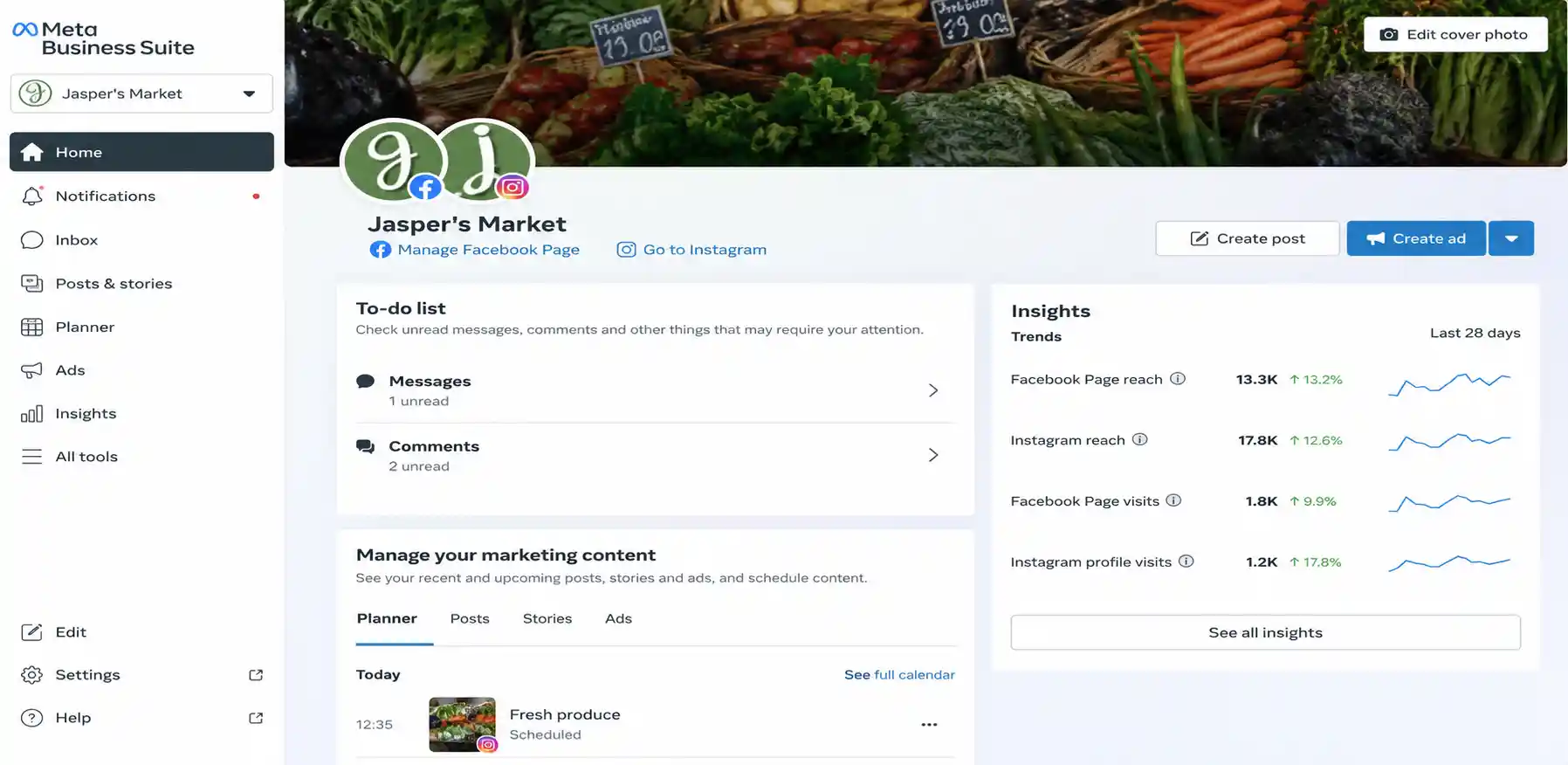
Meta Business Suite is basically a command centre. You connect your Facebook pages and Instagram accounts — multiple of them if you’re that kind of brand — and manage everything from one place.
Think of it as this: instead of logging into Facebook, posting, then logging out and logging into Instagram to post the same thing again, you log in once and do both. Plus you see all your messages from both platforms. Plus analytics. Plus run ads. Plus schedule content weeks in advance.
Sounds simple? It is. But here’s what trips people up: most brands don’t actually set it up correctly. They just start using it without understanding the hierarchy.
When you set up a Meta Business Suite, you’re creating a structure that looks like this: Business Account → Facebook Pages and Instagram Accounts → Ad Accounts and Catalogues. Get this hierarchy wrong and you’ll spend three hours trying to figure out why you can’t schedule a post.
Setting This Up
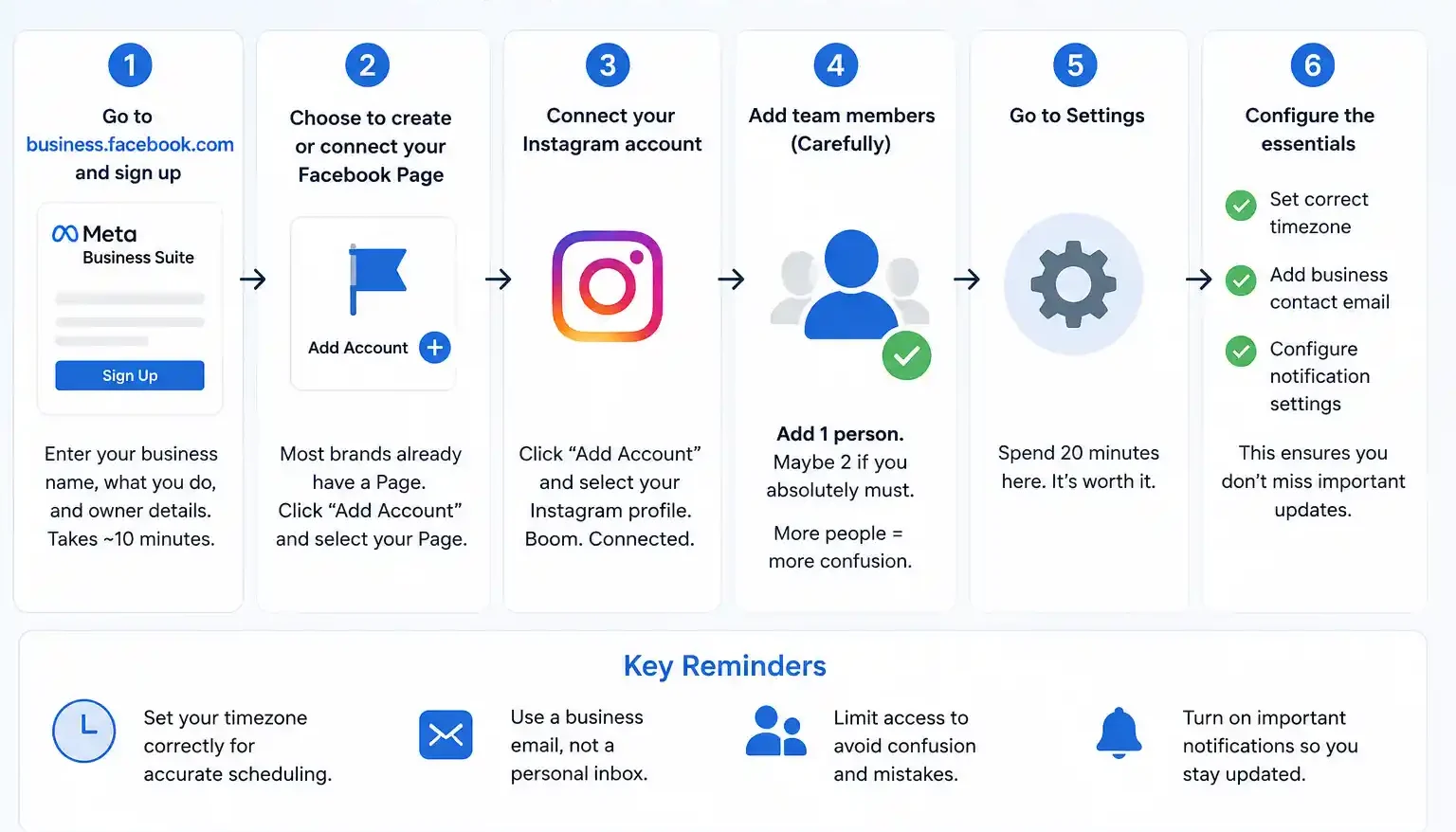
If you’re starting from scratch, here’s what actually happens:
First — you go to business.facebook.com and sign up. They’ll ask for your business name, what you do, who’s the owner. Basic stuff. Takes maybe ten minutes.
Then you have to decide: are you creating a new Facebook page or connecting an existing one? Most brands have a page already, so you’re connecting. Click “Add Account”, select your page, boom. Same with Instagram.
Here’s where people mess up. You’re going to get tempted to add three of your team members to the account “just to be safe.” Don’t. Add one. Maybe two if you absolutely must. More people means more confusion about who posted what, who sent which message, and who’s responsible when something goes wrong. We had a beauty brand client once with eight people on their Business Suite account. Nobody knew who was managing what. It was a disaster.
Once your accounts are connected, go to Settings. Seriously. Spend twenty minutes here. Set your timezone correctly (this matters for scheduling), add a business contact email that’s not just someone’s personal inbox, and configure the notification settings so you actually see important stuff.
What Meta Business Suite Actually Does
Meta Business Suite simplifies day-to-day social media management by bringing publishing, messaging, and insights into one place—but it isn’t an all-in-one marketing solution.
What it does really well:
You can schedule posts across both Facebook and Instagram simultaneously. Not at the exact same time necessarily, but you can schedule them for different times if your audience is more active on Instagram at 6 PM and Facebook at 8 PM. The built-in calendar view is clean. You see at a glance what’s going out when.
Messages. All your Facebook messages and Instagram DMs land in one inbox. Someone comments on your Facebook post, someone DMs your Instagram account, both show up in the same place. This alone is worth it. We’ve seen response times drop from 8 hours to 2 hours just because brands aren’t checking two different inboxes anymore. Faster response times also feed directly into better engagement signals — which is a core factor in how social media content creation strategy compounds into audience growth over time.
Analytics. Dashboard shows you reach, engagement, follower growth, the basics. Not deep enough for serious data analysis — you’ll still want to dig into the native insights or use other tools — but enough to see if a post flopped or crushed it.
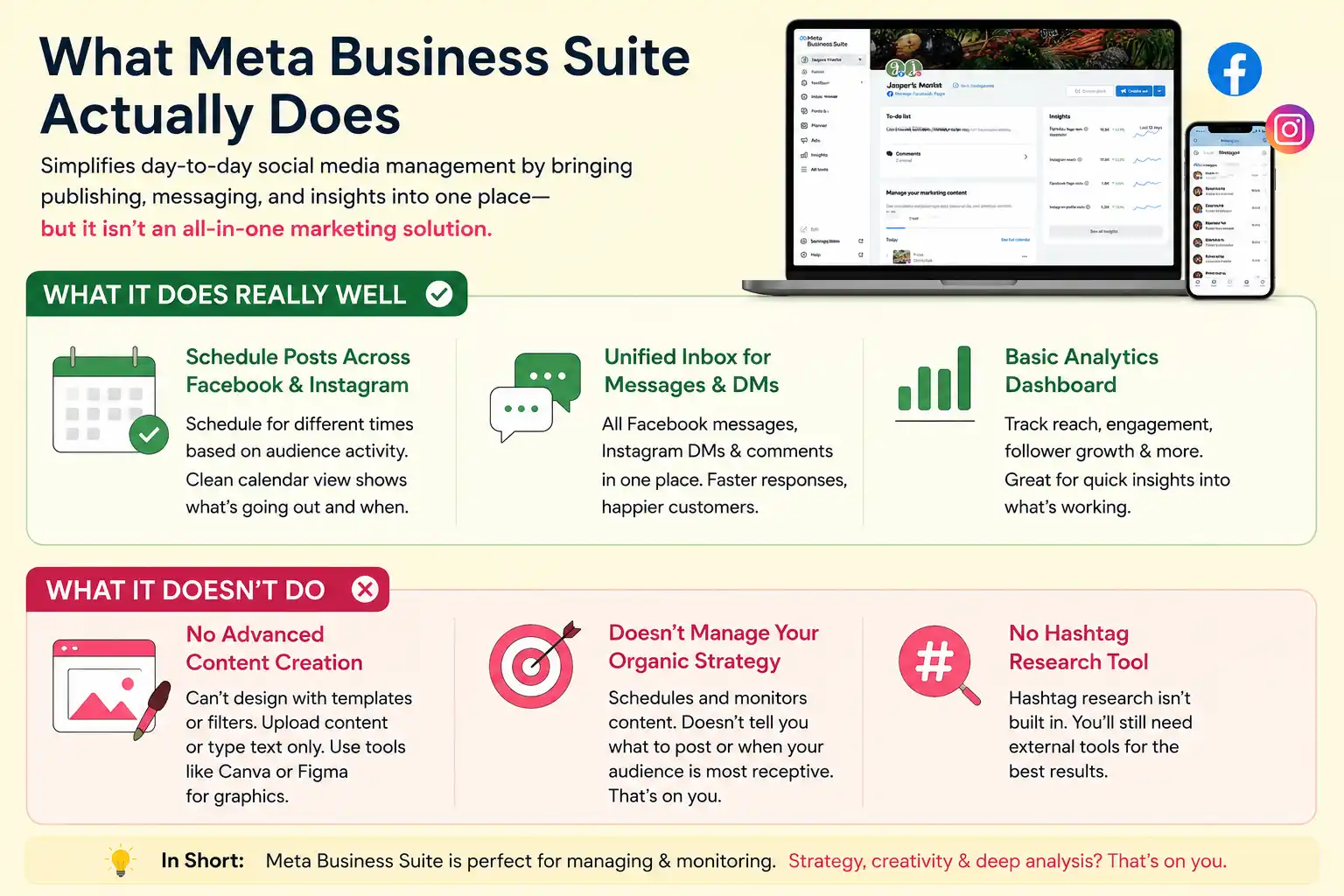
What it doesn’t do:
It can’t do advanced content creation. You can’t design a post with fancy templates or filters from within Business Suite. You’re uploading already-made content or typing text. If you’re making graphics, you’ll still need something like Canva or Figma.
It doesn’t manage your organic digital marketing strategy. This platform schedules and monitors. It doesn’t tell you what to post about or when your audience is most receptive to which types of content. That’s on you.
Hashtag research? Not built in. You’ll still use external tools for that.
The Feature Everyone Overlooks: Scheduling
Most brands either post live or not at all. Which means their content strategy looks like this: “I’m free Tuesday afternoon, so I’ll post Tuesday afternoon. I’m busy Thursday, so nothing goes out.” That’s… not ideal.
Scheduling fixes this. You sit down once a week with a content calendar and schedule twenty posts. They go out at optimal times for your audience whether you’re checking your phone or sleeping.
The scheduling feature in Business Suite is straightforward. You upload your image or video, write your copy, choose the date and time, and schedule. One thing though: Meta sometimes changes when scheduled posts actually go live based on their algorithm’s prediction of when your audience is most active. It’s usually right, but not always.
We had a real estate client posting properties on a schedule every morning at 8 AM. For six weeks, stuff looked fine. Then Meta’s algorithm started pushing their best-performing posts to 9 AM because that’s when more people were engaging. Nobody noticed until we looked at the timestamps. Point is: check your analytics occasionally. Make sure scheduled posts are actually going out when you think they are.
Analytics: The Honest Version
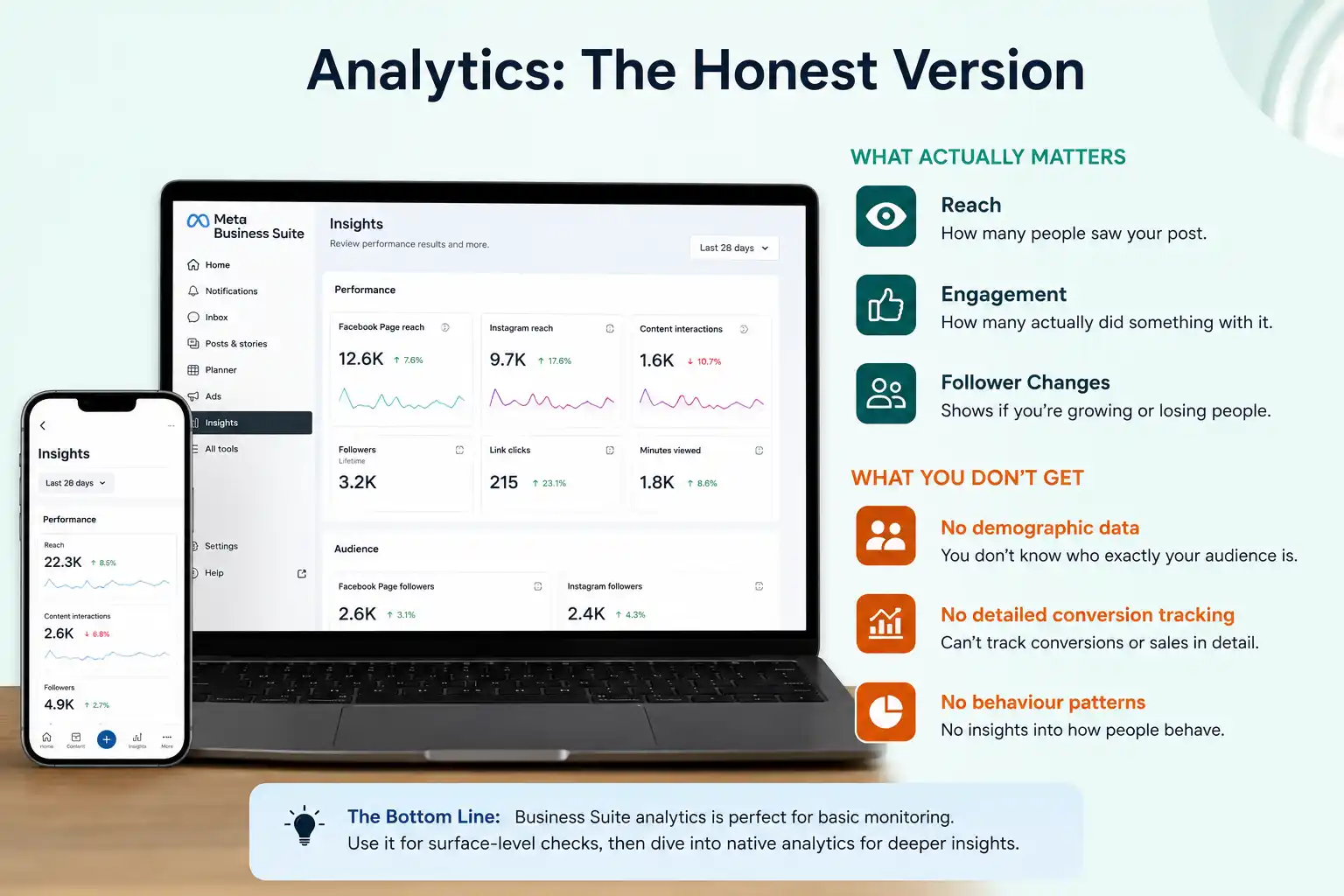
The dashboard shows you three things that actually matter: reach, engagement, and follower changes. Reach tells you how many people saw your post. Engagement tells you how many actually did something with it. Follower changes show if you’re growing or losing people.
What you don’t get from Business Suite’s analytics: demographic data, detailed conversion tracking, or behaviour patterns. You know a post got 1,500 likes, but you don’t really know if it was 15-year-olds liking it or 45-year-old business owners. For that, you go into the native analytics on your page.
Honestly? Business Suite analytics is enough for basic monitoring. “This post did well, this one didn’t.” That’s the information level. If you’re running serious social media marketing and need to understand your audience deeply, you’re using this for surface-level checks and then diving into detailed analytics separately.
Connecting Your Ad Accounts (Where The Real Money Happens)
You can run Facebook and Instagram ads directly from Business Suite. Connect your ad account — the one linked to your payment method — and suddenly you can create and manage campaigns without leaving the dashboard.
This is actually useful if you’re running small, simple ad campaigns. Quick promotion, limited budget, straightforward targeting. You select your audience, set your bid, upload your creative, and go.
But if you’re doing anything remotely sophisticated — running A/B tests, managing multiple campaigns simultaneously, targeting specific audiences across different countries, conversion tracking for e-commerce — you’re better off using the full Ads Manager. It’s got more granular controls.
We usually tell brands: use Business Suite for basic monitoring and scheduling. When you’re actually building serious ad campaigns, go into Ads Manager. They’re both there. Business Suite is the quick-and-easy option. Ads Manager is the professional tool.
The Part That Actually Confuses People
You’ve got your Business Account set up. Pages connected. Instagram linked. Messages are flowing in. Good.
Then you wonder: why can’t I access my ads? Or why is this page not showing up? Or why are some features grayed out?
Usually permissions. Different team members have different access levels. Your content person might be able to schedule posts but not create ad campaigns. Your ads manager might be able to spend money but not see analytics. This is intentional — you don’t want random people creating ads and charging your account.
But it trips up a lot of brands. “I should be able to do this” but the button is grayed out. Before you panic, check the Settings → People and Roles section. You’ll see your permission level. If something’s missing, the owner of the account can grant it.
One brand we worked with thought their Business Suite was broken. Turns out the person had “Editor” access but couldn’t post to one of their pages because that page had different managers. Simple fix. But they spent a week thinking something was wrong.
The Honest Truth About Business Suite Vs Business Manager
At some point you might hear about Business Manager and wonder if you need it instead. You probably don’t.
Business Suite = single brand managing their own pages. Simple. Clean. Enough features for probably 95% of Indian brands.
Business Manager = agencies managing dozens of client accounts. Enterprises with complex access structures. Companies that need to manage multiple brands under one umbrella.
If you’re a solo entrepreneur or running one brand, Business Suite. If you’re an agency with twenty clients… then you’re looking at Business Manager. The migration isn’t hard if you ever outgrow Suite, but you almost certainly won’t need to.
Things Nobody Mentions Until They’re A Problem
Sync Issues: Sometimes a post scheduled on Instagram doesn’t appear. It’s rare but it happens. Usually Meta’s backend thing. Usually resolves within an hour. If it doesn’t, reshoot the post.
Time Zone Hell: You schedule a post for 9 AM. It goes out at 7 AM. Probably timezone issue in settings. Check your Business Suite timezone against your account timezone. They need to match or everything’s off by hours.
Image Sizes: You upload an image that looks fine on Facebook but gets cropped weirdly on Instagram. Because Facebook and Instagram want different aspect ratios. You’ll learn to keep important details away from the edges or just accept that images will look slightly different on each platform.
Captions Disappearing: You write a caption with hashtags, schedule the post, and suddenly the hashtags are missing. Your teammates ask if you deleted them. You didn’t. Meta sometimes strips out formatting or hashtags from scheduled posts. It’s glitchy. Repost if it matters.
Actually Using This For Growth (Not Just Convenience)
Okay, so you’ve got everything set up. Now what? The real question is: does Business Suite make your social media actually better?
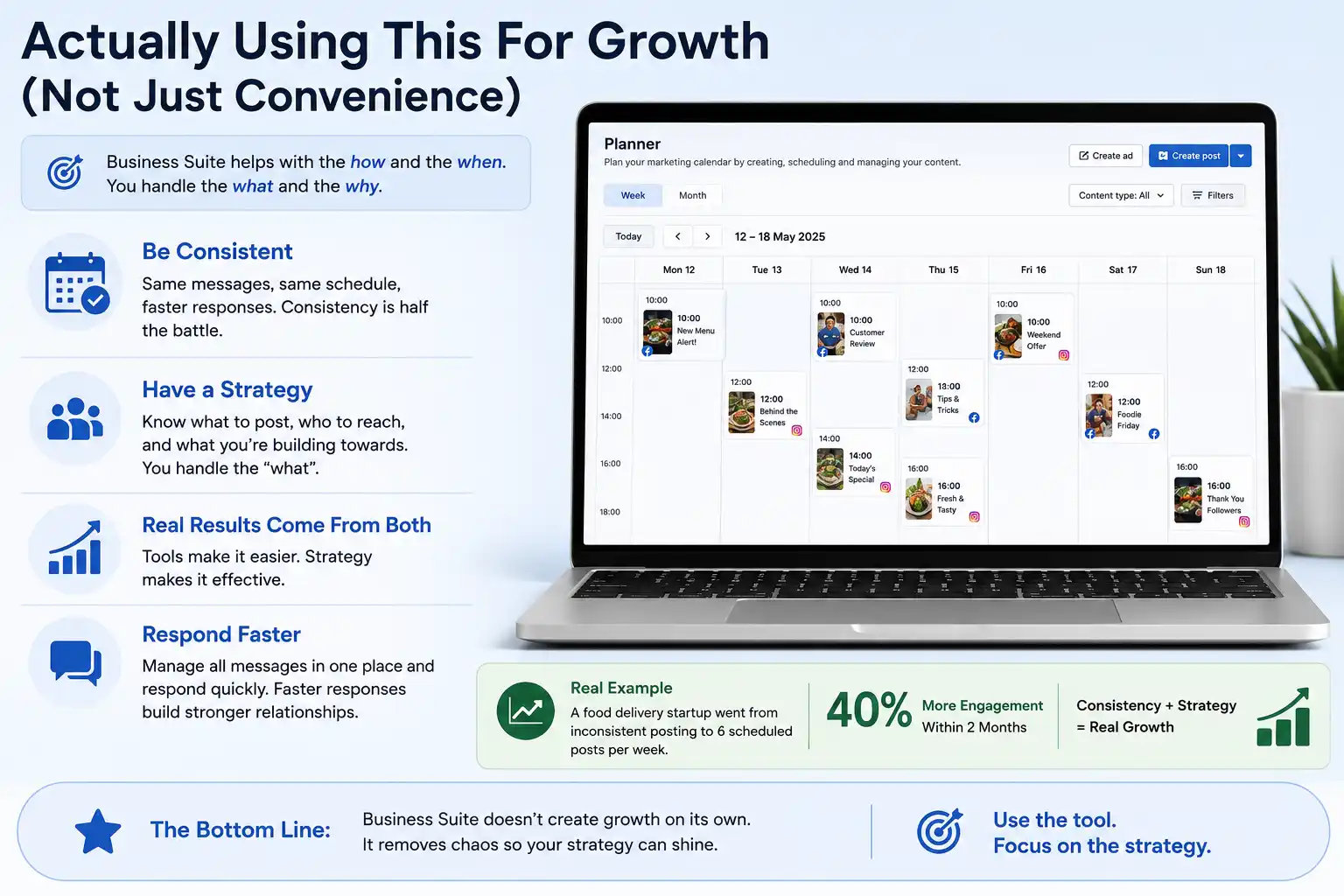
Yes, but not automatically. The tool lets you be consistent — same messages across platforms, same posting schedule, responses to comments faster. Consistency is half the battle.
The other half is still strategy. What are you posting about? Who are you trying to reach? Are you building towards something or just posting randomly? Business Suite manages the “how” and the “when”. You handle the “what”.
We’ve seen brands get significantly more engagement just by being consistent with their posting schedule and responding to messages faster. A food delivery startup client went from spotty posting — sometimes three posts a day, sometimes nothing for a week — to six scheduled posts per week. Consistency alone got them 40% more engagement within two months.
Did Business Suite do that? No. Business Suite just made it easier not to be chaotic. The strategy still came from understanding their audience and what content actually worked.
When To Actually Use This Vs When To Do Things Manually
Business Suite is brilliant for scheduling. If you know your content a week in advance, schedule it. Done.
But for real-time engagement — responding to comments, jumping on trends, engaging with other accounts — you might want to be on the native apps. The native Instagram app feels more natural for browsing and engaging. Business Suite’s interface is clunkier for that kind of work.
Messages? Use Business Suite. One inbox, way better than checking both apps separately.
Ads? Small campaigns, use Business Suite. Complex campaigns, go to Ads Manager.
Analytics? Surface level, Business Suite. Deep analysis, native analytics.
The Setup You Should Have Right Now
If you’re a brand and you’re serious about social media management, here’s what I’d recommend:
Business Suite for posting and scheduling. One person responsible (you or one team member) who schedules content every week. This takes maybe two hours a week.
Native apps for engagement. Someone monitoring comments, responding to messages, staying present. This is ongoing but less intensive.
Ads Manager for any paid promotion. Setup’s separate from Business Suite but linked to it.
External tools for content creation (Canva, Figma) because Business Suite isn’t a design tool.
This stack is probably overkill for a tiny brand. If you’ve got two posts a week and minimal interaction, just post natively. But if you’re taking social media management seriously, this setup eliminates most of the chaos.
The Real Question: Is This Worth Setting Up?
If you manage more than one social account, yes. If you run Facebook and Instagram, absolutely yes. The time you save on posting alone — not logging in and out of different accounts — pays for itself.
If you’re managing DMs and comments, hell yes. Having everything in one inbox is life-changing compared to bouncing between apps.
If you’re only on Facebook? You could skip it. But even then, the scheduling feature is good enough that it’s worth the five minutes to set up.
Setup takes about thirty minutes if you’ve already got accounts ready to connect. The learning curve is maybe a week of regular use before you’re comfortable. Then it becomes second nature.
At PromotEdge, we work with dozens of brands on their social media management and content strategy. Every single one benefits from proper Business Suite setup. The ones who actually schedule consistently, who monitor messages actively, and who review analytics weekly? They’re the ones that grow.
| Approach | Best for | Watch out for |
|---|---|---|
| DIY | Small teams, tight budgets | Slow ramp-up, trial-and-error |
| Freelancer | Specific project bursts | Inconsistency, limited ownership |
| Agency | Ongoing work, senior input | Higher retainer, less control |
Quick checklist before you start:
- Define the one thing you want: leads, sales, awareness — pick one.
- Baseline your numbers: write down where you are today.
- Pick a 90-day window: nothing moves in 2 weeks.
- Agree on success metrics: with whoever is paying the bill.
- Set up proper tracking: GA4, UTMs, call tracking.
- Review monthly: kill what doesn’t work, double down on what does.
The Bottom Line
If you take one thing from this: meta business suite guide manage facebook instagram marketing rewards patience and specificity, not volume or clever tricks. Start small, measure honestly, fix what breaks, and compound what works. The brands doing this well in India aren’t smarter — they’re just consistent. Need a hand with this for your business? Talk to us.
Ready to Get Your Social Media Organised?
We help 250+ Indian brands manage their social presence across platforms. From strategy to execution to analytics. Let’s talk about what your social media could look like with proper structure.
FAQs
-
Is Meta Business Suite free?
Ans.Yes. The platform itself is completely free. You only pay when you run ads. All the scheduling, messaging, analytics, account management features — free. Meta makes money from ads, so they give you the management tools at no cost. -
What's the actual difference between Business Suite and Business Manager?
Ans.Suite is simpler — designed for one brand managing a few accounts. Manager is for agencies and enterprises managing dozens of client accounts and multiple brands. If you are a solo brand or small business, Suite is enough. If you are an agency managing multiple clients, Manager is necessary. -
Can I manage Instagram from Business Suite?
Ans.Completely. Connect your Instagram business account and you can schedule posts, stories, respond to DMs, check analytics — all from the same dashboard as Facebook. That is actually the whole point of the tool. -
Does scheduling posts actually affect how many people see them?
Ans.Not directly. A scheduled post reaches the same potential audience as a live post. What matters is when you post relative to when your audience is online. If you schedule a post for 2 AM when nobody is browsing, it would not get engagement — whether it is scheduled or live.
Author Details

Latest Posts
-
 26 / Aug
Search Engine Optimization Video SEO: How to Rank Your Videos in Google & YouTube
26 / Aug
Search Engine Optimization Video SEO: How to Rank Your Videos in Google & YouTube -
 25 / Aug
Video Production Corporate Video Production: A Practical Guide for Indian Brands
25 / Aug
Video Production Corporate Video Production: A Practical Guide for Indian Brands -
 24 / Aug
-
21 / Aug
Catalogue Design Catalogue Design: How to Create Catalogues That Actually Sell
-
 20 / Aug



Related Knowledge