-
Author: Milan Shyamal
-
Updated Date: Aug-20-2026
-
Views: 2 Min Read
Google Search Console for social media now lets brands track how Instagram, TikTok, X, and YouTube content performs across Google Search, Discover, and Google News. This guide explains how to verify social accounts, interpret clicks, impressions, CTR, average position, and search queries, and turn Google search data into better social content. Learn how to use platform properties for Instagram and YouTube SEO, identify emerging topics, compare content formats, and build a practical monthly optimization routine.
Google Search Console officially started supporting social media tracking on 7 July 2026. On that day, Google introduced platform properties, allowing users to verify an Instagram, TikTok, X or YouTube account without owning a website or domain.
Google opened them to everyone worldwide on 29 July 2026 and published a data guide the same day. Search Engine Journal reported the rollout finished three weeks after it began.
Your social platform has always told you how a post performed inside its own app. It has never told you what someone typed into Google before tapping through to that post.
Search Console now shows those search terms. That turns social media into a measurable SEO channel instead of an assumed one, and gives search everywhere optimization a reporting layer.
Google Search Console For Social Media: What Platform Properties Actually Measure
A platform property represents one social or video account rather than one domain. Google supports four platforms: Instagram, TikTok, X and YouTube. Search Engine Journal noted the feature works for accounts with no website at all.
Each account becomes its own property. Two Instagram handles and a YouTube channel means three separate properties, each verified individually.
The data covers Google Search, Discover and Google News. Google’s help documentation is explicit that platform properties do not track what happens inside the app, so TikTok in-app views and Instagram profile visits stay where they always were.
Two counting rules change how you read the charts. Instagram stories appearing in Google results count as impressions, and a tap on one counts as a click.
Video is the second rule. Google records a click even when the video opens inside Google’s own viewer rather than on your channel page, so click volume includes plays that never reached your platform.
What Search Console Shows That Your Native Analytics Never Will
| Question | Instagram Insights, YouTube Studio, TikTok Analytics | Search Console platform property |
|---|---|---|
| Where did the view come from | In-app feed, Explore, profile, in-app search | Google Search, Discover, Google News |
| Which search terms were used | The platform’s own internal search terms | The exact queries typed into Google |
| Likes, saves, comments, watch time | Yes | No |
| Follower growth and reach | Yes | No |
| Average position in Google results | No | Yes |
| Export schema for cross-platform work | Different per platform | Identical across all four properties |
The two halves do not overlap. Running one without the other leaves you optimising for a feed algorithm or a search algorithm, never both.
How To Add And Verify A Social Channel In Search Console
Before you can start tracking social channel performance in Search Console, you first need to connect and verify each eligible social account.
The Setup Steps
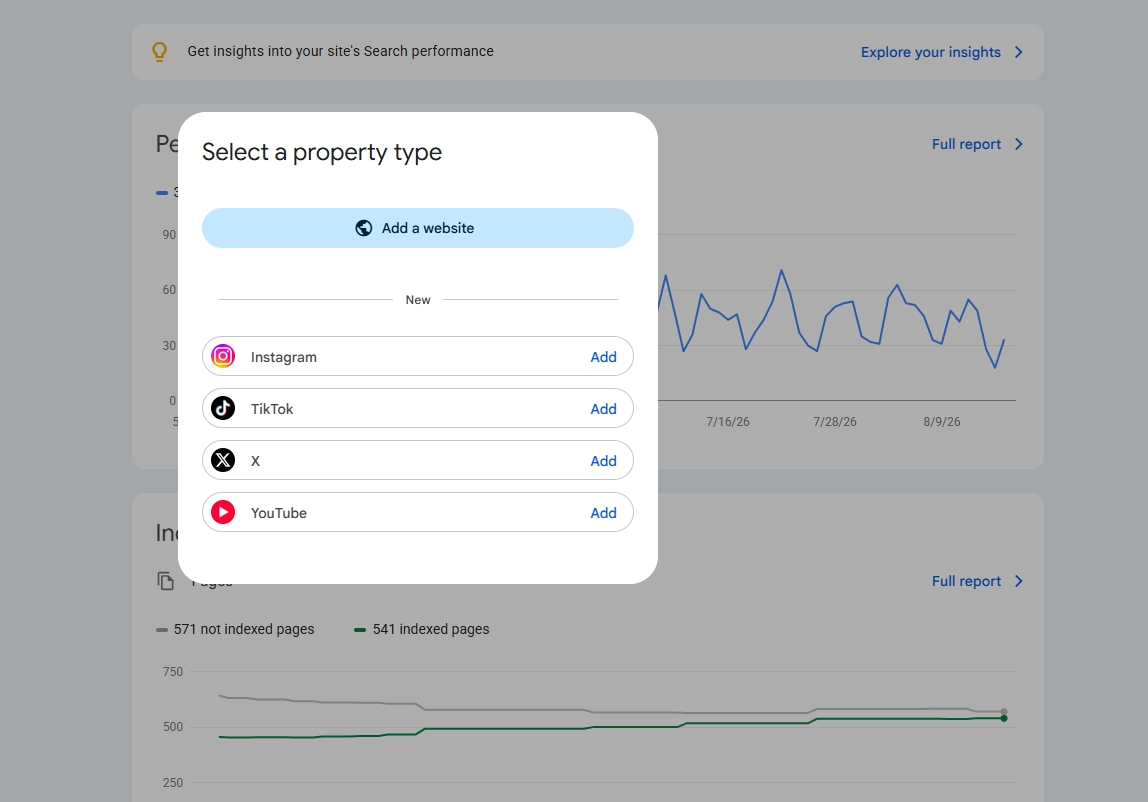
- Open Search Console, then use the welcome screen or click the property selector dropdown in the sidebar and choose Add property. Google’s help page lists the four platform options directly in that list.
- Click Add next to Instagram, TikTok, X or YouTube and follow the prompts to authorise the connection. Verification is an account authorisation, not a DNS record or an HTML file upload.
- Once ownership is confirmed you get a confirmation message and a Go to property button. Google says it takes a few days for data to appear in the reports.
- Repeat for every account you manage. There is no bulk import, so a brand running four handles across three platforms clicks through this flow seven times.
- The earlier version of this feature worked differently. Google’s December 2025 experiment surfaced social data inside Insights for a limited set of sites, and only for channels Search Console had identified automatically.
Who Actually Needs To Be At The Keyboard
Verification needs whoever holds the platform login, which is rarely the person holding Search Console access. Book fifteen minutes with your social manager instead of emailing instructions.
If you already claimed a Search profile, Google says your verified accounts are added to Search Console automatically. Check the property selector before you start adding anything by hand.
Keeping The Connection Alive
Google checks ownership periodically. If an external login expires, access to that property pauses until you re-verify it.
Re-verification restores the same report without waiting for data to rebuild, so a lapsed connection costs collection days rather than history. A quarterly calendar reminder covers it.
Why Verifying This Week Beats Verifying Next Quarter
Platform property charts only show data from the day collection started. Google states that a recently created property shows data for the days since collection began, and nothing before it.
There is no historical backfill. Every week of delay is a week of query history that will never exist, which bites hardest when you want a year-on-year comparison in 2027.
The Metrics To Track, And The One Report That Misleads People
Four metrics carry over from website properties: total clicks, impressions, average click-through rate and average position. All four filter by query, page, country, device and date.
The average position needs a different reading here. A position of 8 for a Reel is not the failure it would be for a service page, because that Reel sits in a results page also holding ten web listings.
Google documents a discrepancy inside the Insights report that otherwise wastes an afternoon. The top summary card counts all clicks across Google, including image, video and news search.
The detailed cards below that summary count web search results only. The lists will add up to less than the headline number, and that gap is documented behaviour rather than a bug.
The number worth building a habit around is distinct query count, not click count. A post earning 40 clicks from 25 different queries is handing you 25 content topics.
Google News and Discover reports only appear when your content actually receives traffic from those surfaces. Their sudden appearance in the sidebar is itself a signal that something has broken out.
Turning The Data Into SEO Decisions
Start with the query list sorted by impressions, filtered to queries with low clicks. Those are searches where Google already shows your post and users pick something else.
Two responses apply. Rewrite the caption or video title to match the query language, or publish a page on your own site that answers the query properly.
The second response is the one most teams skip. A Reel collecting impressions for a commercial query while your website has nothing on that topic is unclaimed demand sitting in plain sight.
Dual occupancy is the other play. A social post and a site page ranking for the same query take two slots instead of one, which is a practical answer to zero-click search behaviour.
The Insights report groups queries into themes and flags them as top, trending up or trending down. Google suggests using the trending up group to decide where new content time goes.
Read those groups alongside the related searches and People Also Search For suggestions on the live results page. Search Console tells you what worked, and the results page tells you what sits next to it.
Annotations turn recall into a record. Add one on the day you rewrite a caption or title, then compare performance either side of that marker.
Treat annotations as a log, not a controlled test. Seasonality, core updates and platform distribution all move at once, so a lift after a caption rewrite is evidence rather than proof.
Query data also feeds answer engines. The phrasing that earns your posts Google impressions is usually the phrasing that earns citations in AI surfaces, which is where the SEO, GEO and AEO distinction stops being academic.
Instagram Content And Topic Research Using Search Console
Search Console can also turn your Instagram performance data into practical content insights, helping you identify what people search for and use those signals to plan stronger posts.
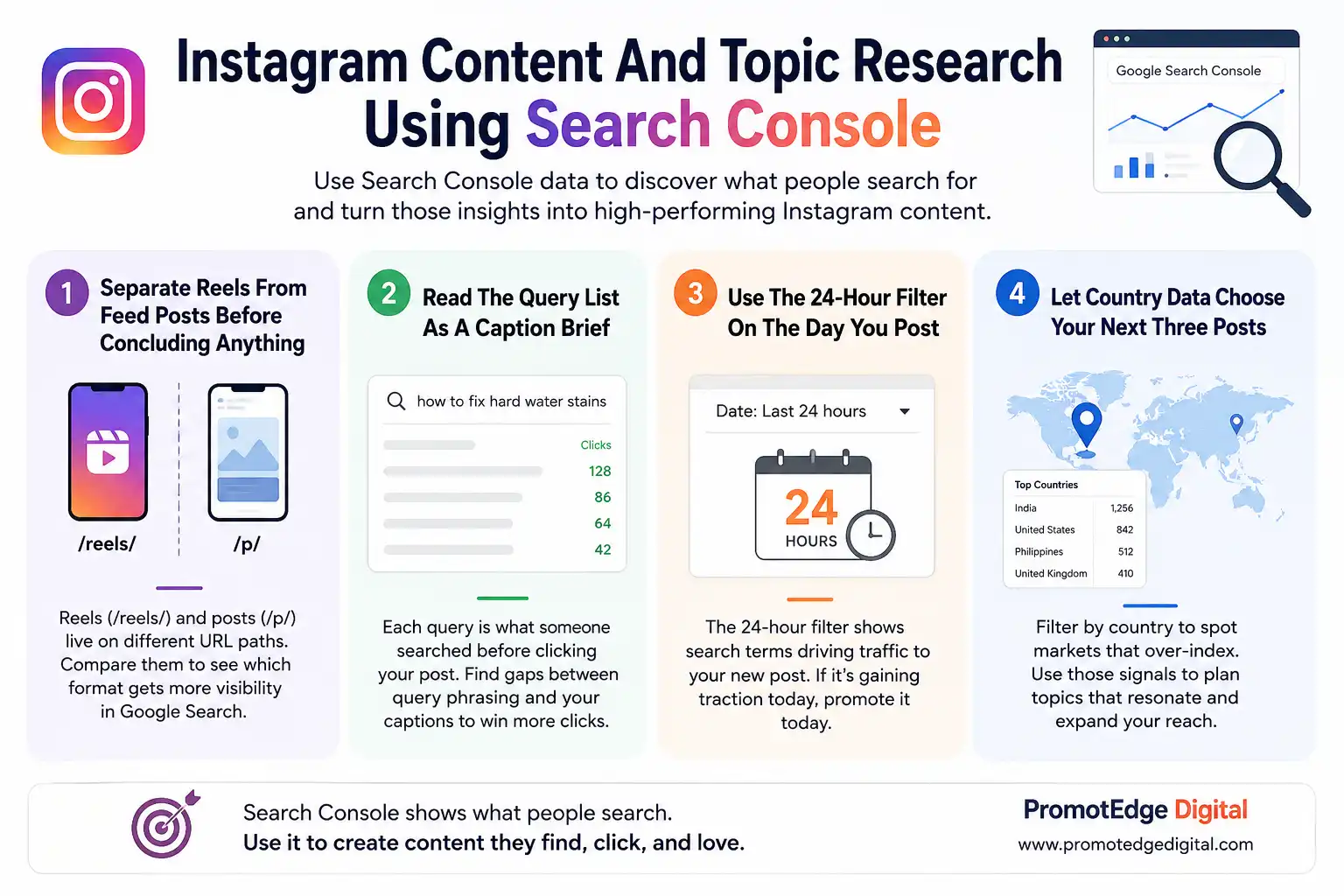
1. Separate Reels From Feed Posts Before Concluding Anything
Instagram Reels and feed posts sit on different URL paths, which makes them filterable. Google’s analysis guide gives the split: URLs containing /p/ are posts, URLs containing /reels/ are Reels.
Put those two groups into comparison mode and you answer a question Instagram Insights cannot. You find out which format earns your account more visibility in Google Search, not in the feed.
2. Read The Query List As A Caption Brief
Every query in the report is a phrase someone typed before choosing your post. That is caption research with the guesswork removed, and it behaves far more like keyword research than like social copywriting.
Hunt for gaps between query phrasing and your own wording. If people search “how to fix hard water stains” and your caption says “bathroom refresh”, the caption is costing you clicks it already earned impressions for.
3. Use The 24-Hour Filter On The Day You Post
The Performance report carries a 24 hours filter. Google’s guide describes using it to catch a search term suddenly sending people to something you published yesterday.
That window is short by design. If a Reel is picking up search traffic today, a story pointing at it today is worth more than a scheduled post next week.
4. Let Country Data Choose Your Next Three Posts
Filter by country and one or two markets usually over-index. A Reel pulling search traffic from a country you never targeted is a topic signal worth testing, not a rounding error.
Feed that back into your posting calendar rather than a separate report. Content planning only improves when the data reaches the person writing the captions.
Youtube Seo And Topic Research With Real Google Query Data
Search Console adds another layer to YouTube research by showing which Google searches bring visibility to your videos, helping you uncover topics and optimisation opportunities beyond YouTube’s own analytics.
1. Google Queries And Youtube Search Terms Are Two Different Lists
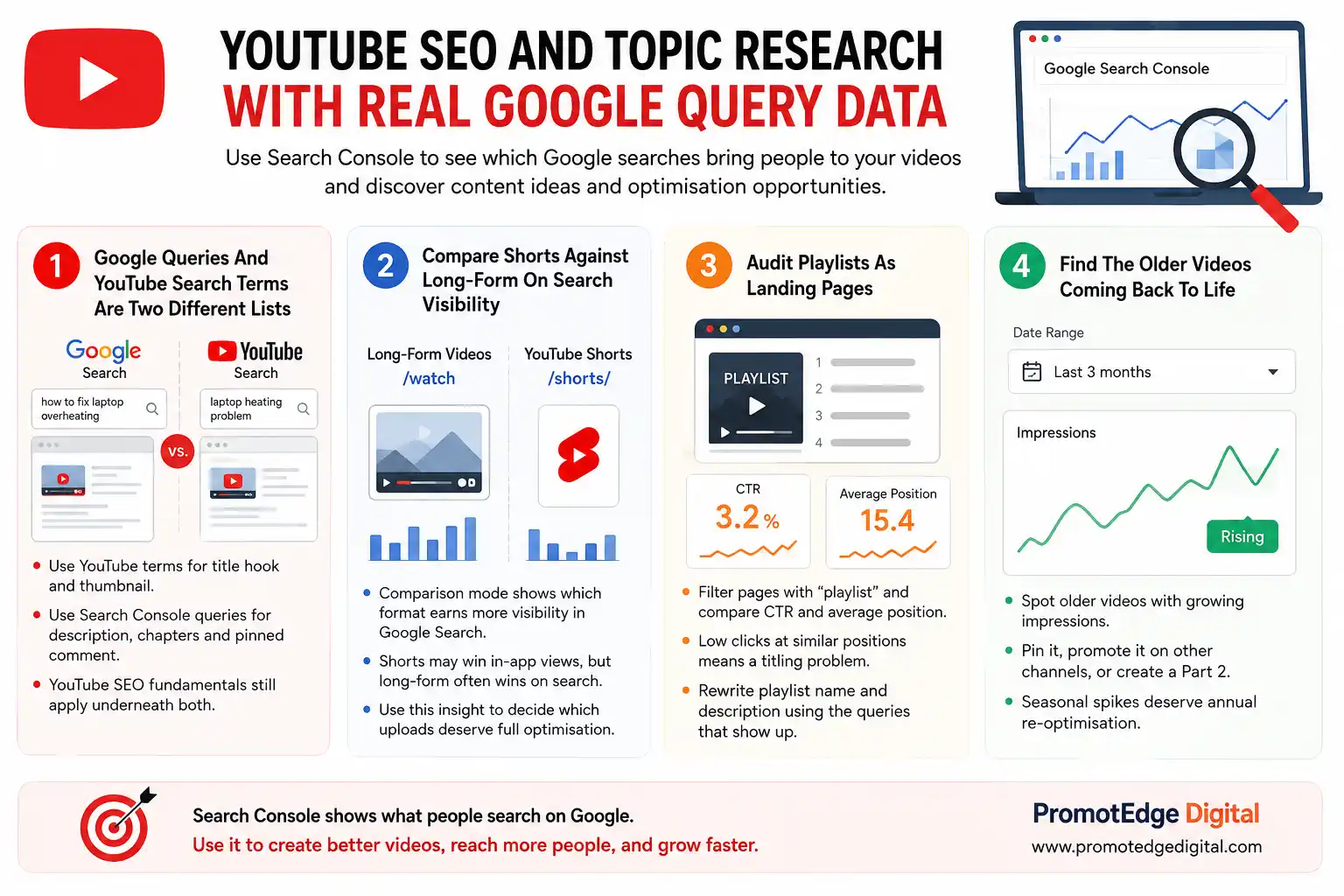
YouTube Studio reports the terms people typed inside YouTube. A Search Console platform property reports the terms people typed into Google before landing on your video.
These lists overlap less than most teams expect. Google surfaces video for how-to and informational intent that YouTube’s own search treats differently, so optimising for one list leaves the other unclaimed.
A workable rule: use YouTube Studio terms for the title hook and thumbnail, and Search Console queries for the description, chapters and pinned comment. The YouTube SEO fundamentals still apply underneath both.
2. Compare Shorts Against Long-Form On Search Visibility
Google’s guide gives the filter directly: URLs containing /watch are full videos and URLs containing /shorts/ are Shorts. Comparison mode places them side by side.
Results often contradict channel-level assumptions. A channel where Shorts dominate in-app views can still earn most of its Google visibility from long-form uploads.
That reframes short-form video as a distribution tactic rather than a search tactic, and it changes which uploads deserve a full description and chapter list.
3. Audit Playlists As Landing Pages
Playlist pages rank on their own. Google’s guide describes filtering pages to include the word playlist, then clicking the CTR and average position scorecards to compare them.
Playlists sitting at similar positions with very different click volumes have a titling problem, not a ranking problem. Rewrite the playlist name and description against the queries the report shows.
4. Find The Older Videos Coming Back To Life
Set a three month range and look for older uploads climbing in impressions. Google’s guide names the responses: pin it to the feed, mention it on your other channels, or film a part two.
Seasonal recovery is the usual cause. A video that spikes every August is a video worth re-optimising every July, which is a decision no in-app dashboard prompts you to make.
A Monthly Routine That Keeps This Useful
- Thirty minutes a month is enough once properties are verified. Open the Insights report for each property and read the query groups card first, because it orientates you fastest.
- Move to Performance next, set the date range to the last 28 days against the previous 28, and sort queries by impression change. Write down the five queries growing fastest.
- Turn those five into three actions. One caption or title rewrite, one new post on the platform where the query is growing, and one page on your own website if the query carries commercial intent.
- Log the date of every change as an annotation. Six months of annotations is the difference between a reporting habit and a plan that actually adapts.
Mistakes That Waste The Data
- Benchmarking in week one. With a few days of collection behind them, early numbers describe your setup date rather than your performance.
- Reading average positions like a website ranking. Video and social results appear in carousels, image packs and Discover, where position means something different from blue-link order.
- Treating Search Console as a replacement for platform analytics. It reports Google surfaces only, so watch time, saves and follower growth still live in the native dashboards.
- Verifying one flagship account and stopping there. The account earning the least in-app engagement is often the one earning search impressions, and you cannot see that until it has its own property.
- Exporting nothing. Google’s guide is explicit that cross-platform comparison happens in a spreadsheet, because Search Console has no single view across four properties.
What This Actually Changes
Search Console did not add social analytics. It added the missing half of a picture social platforms were never able to show you.
That half is search intent. Feed algorithms reward what stops a scroll and Google rewards what answers a question, and one video can do both once you know which queries it already answers.
Verify the accounts this week for one reason above every other. The history starts the day you connect, and there is no way to buy it back later.
Frequently Asked Questions
-
Do I need a website to use Google Search Console for social media?
Ans.No. Platform properties verify by connecting the social account itself, so creators and brands with no website at all can use Search Console for the first time. -
Which platforms does Search Console support?
Ans.Search Console supports Instagram, TikTok, X and YouTube as platform properties. Facebook, LinkedIn, Pinterest and Threads are not supported. -
How long before social data appears in the Search Console?
Ans.Google says it takes a few days after setup for performance metrics to collect and process. Charts show data only from the day collection started, and there is no historical backfill. -
Does Search Console show likes, comments or watch time?
Ans.No. Platform properties report clicks, impressions, CTR and average position from Google Search, Discover and Google News only. Native engagement metrics stay inside each platform's own analytics. -
What happens if my social account connection expires?
Ans.Access to that property pauses until you re-verify it. Google states that re-verifying restores the same report without waiting for data to accumulate again. -
Can I compare Instagram and YouTube performance in one view?
Ans.Not inside the Search Console. Google's guide recommends exporting each property separately and comparing the platforms side by side in a spreadsheet. -
Is a platform property the same as a Search profile?
Ans.No. A Search profile is a public creator page in Google Search introduced in June 2026, while a platform property is a private analytics property. Claiming a Search profile can add your accounts to Search Console automatically.
Author Details

Latest Posts
-
 18 / Sep
Search Engine Optimization AI Is Changing Seo: You Still Rank, But Clicks Are Falling
18 / Sep
Search Engine Optimization AI Is Changing Seo: You Still Rank, But Clicks Are Falling -
 11 / Sep
-
18 / Aug
Google Search Console Google Search Console For Social Media: How To Track Instagram, Tiktok, X And Youtube
-
 05 / Aug
SEO vs GEO vs AEO SEO vs GEO vs AEO: A Simple 2026 Comparison for Businesses
05 / Aug
SEO vs GEO vs AEO SEO vs GEO vs AEO: A Simple 2026 Comparison for Businesses -
 31 / Jul
Uncategorized How to Build a 90-Day Digital Marketing Plan That Works
31 / Jul
Uncategorized How to Build a 90-Day Digital Marketing Plan That Works

Blogs
Journey into Ideas Unveiling Tomorrow's Insights Today.

-
Do I need a website to use Google Search Console for social media?
Ans.No. Platform properties verify by connecting the social account itself, so creators and brands with no website at all can use Search Console for the first time. -
Which platforms does Search Console support?
Ans.Search Console supports Instagram, TikTok, X and YouTube as platform properties. Facebook, LinkedIn, Pinterest and Threads are not supported. -
How long before social data appears in the Search Console?
Ans.Google says it takes a few days after setup for performance metrics to collect and process. Charts show data only from the day collection started, and there is no historical backfill. -
Does Search Console show likes, comments or watch time?
Ans.No. Platform properties report clicks, impressions, CTR and average position from Google Search, Discover and Google News only. Native engagement metrics stay inside each platform's own analytics. -
What happens if my social account connection expires?
Ans.Access to that property pauses until you re-verify it. Google states that re-verifying restores the same report without waiting for data to accumulate again. -
Can I compare Instagram and YouTube performance in one view?
Ans.Not inside the Search Console. Google's guide recommends exporting each property separately and comparing the platforms side by side in a spreadsheet. -
Is a platform property the same as a Search profile?
Ans.No. A Search profile is a public creator page in Google Search introduced in June 2026, while a platform property is a private analytics property. Claiming a Search profile can add your accounts to Search Console automatically.