-
Author: Anindita Barik
-
Updated Date: Jul-30-2026
-
Views: 2 Min Read
Google Tag Manager Setup Guide for Marketers explains how to install, configure, and manage GTM to simplify website tracking without constant developer support. The guide covers containers, tags, triggers, variables, event tracking, testing, common mistakes, and long-term best practices. It also explains how GTM works with Google Analytics to improve conversion tracking and marketing insights. Whether you’re tracking form submissions, button clicks, or campaigns, this guide helps you build a reliable and scalable tracking setup.
Google Tag Manager (GTM) is a free tag management tool that lets marketers add, update, and manage tracking codes without making repeated changes to a website’s source code. It centralizes tags for tools like Google Analytics, Google Ads, and Meta Pixel, making tracking faster and easier.
This Google Tag Manager Setup Guide for Marketers explains how to install GTM, configure tags, triggers, and variables, track user interactions, test implementations, and follow best practices for accurate, scalable website tracking and conversion measurement.
Your Website Is Tracking Data Wrong
Most marketing teams spend weeks setting up their Google Analytics. Getting the tracking code on the website. Creating conversion goals. Building reports. Months pass. Then someone asks: “Wait, are we tracking that button click?” And nobody’s sure.
Or your developer says “We’ll add the tracking code directly to the website” and two weeks later you realise the code is out of date because Google released a new version and nobody updated it.
This is what Google Tag Manager solves. Not completely — you still need to know what you’re tracking. But GTM gives you one dashboard to manage all your tracking codes instead of having developers edit your website code every time you need to track something new.
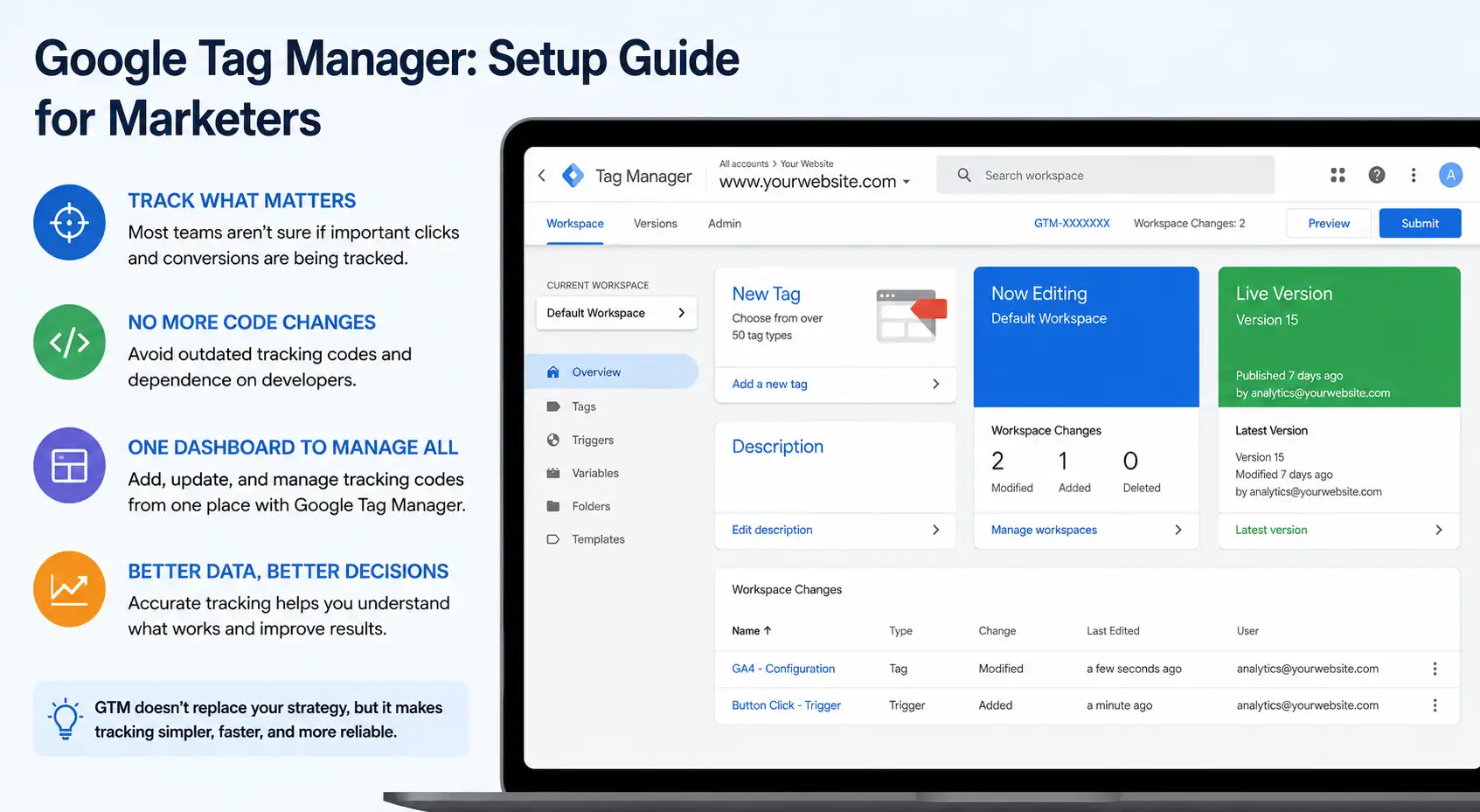
This guide walks through setting up GTM, how to actually use it for real tracking, and what most marketers miss when they’re learning it.
What Exactly Is Google Tag Manager
Think of it this way. Your website is a room. All your measurement tools — Google Analytics, Facebook Pixel, AdWords conversion tracking, whatever else — are people standing in that room trying to figure out what’s happening. Each person needs different information delivered in a different format.
Without GTM, your developer has to hardcode each person’s needs directly into the room’s structure. Someone wants to track when visitors click a button? Code it in. Someone else wants to track form submissions? More code. Add a third tracking tool? Even more code.
Google Tag Manager is the coordinator (jago (coordinator), metaphorically speaking) who stands in the middle and makes sure each person gets what they need without touching the room’s actual structure. You tell GTM what events to capture, and GTM delivers that data to each of your tools automatically.
The actual name is a bit misleading. GTM isn’t really about managing tags themselves. It’s about managing what triggers those tags to fire.
Setting Up GTM
Before you can track conversions, button clicks, form submissions, or user behavior, you need to set up Google Tag Manager correctly. A proper GTM installation takes only a few minutes, but getting this first step right ensures every tracking tag you add later works as intended.
1. Creating a Container
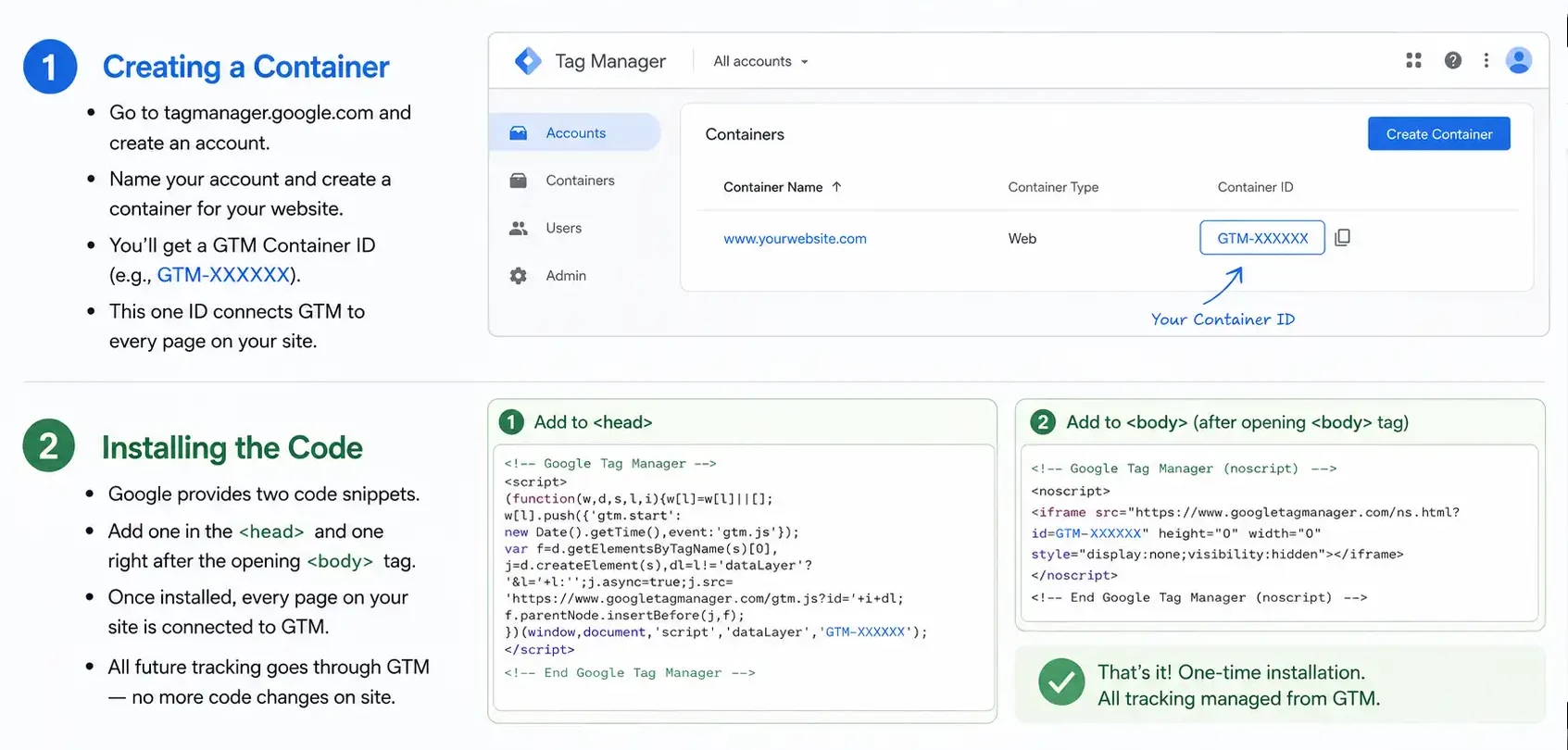
Go to tagmanager.google.com. Click “Create account.” Name your account something meaningful — your company name works. Create a container for your website. This is just GTM’s way of saying “here’s the space where all your website tracking lives.”
You’ll get a GTM container ID. Something like GTM-XXXXXX. This is what you put on your website. Every page on your site needs this one line of code. Not dozens of lines. One line. That’s the whole point.
2. Installing the Code
Google gives you two snippets of code — one that goes in the “ section of your website, one that goes in the “. Your developer puts these in. Then every page on your website is connected to GTM.
This is the only code you ever need on your website going forward. All your other tracking goes through GTM instead of directly on the site. This is also why GTM integrates so cleanly with a well-structured website design and development setup — when the site is built cleanly with GTM in mind from the start, tracking implementation becomes a marketing function rather than a developer dependency.
Understanding Tags, Triggers, and Variables
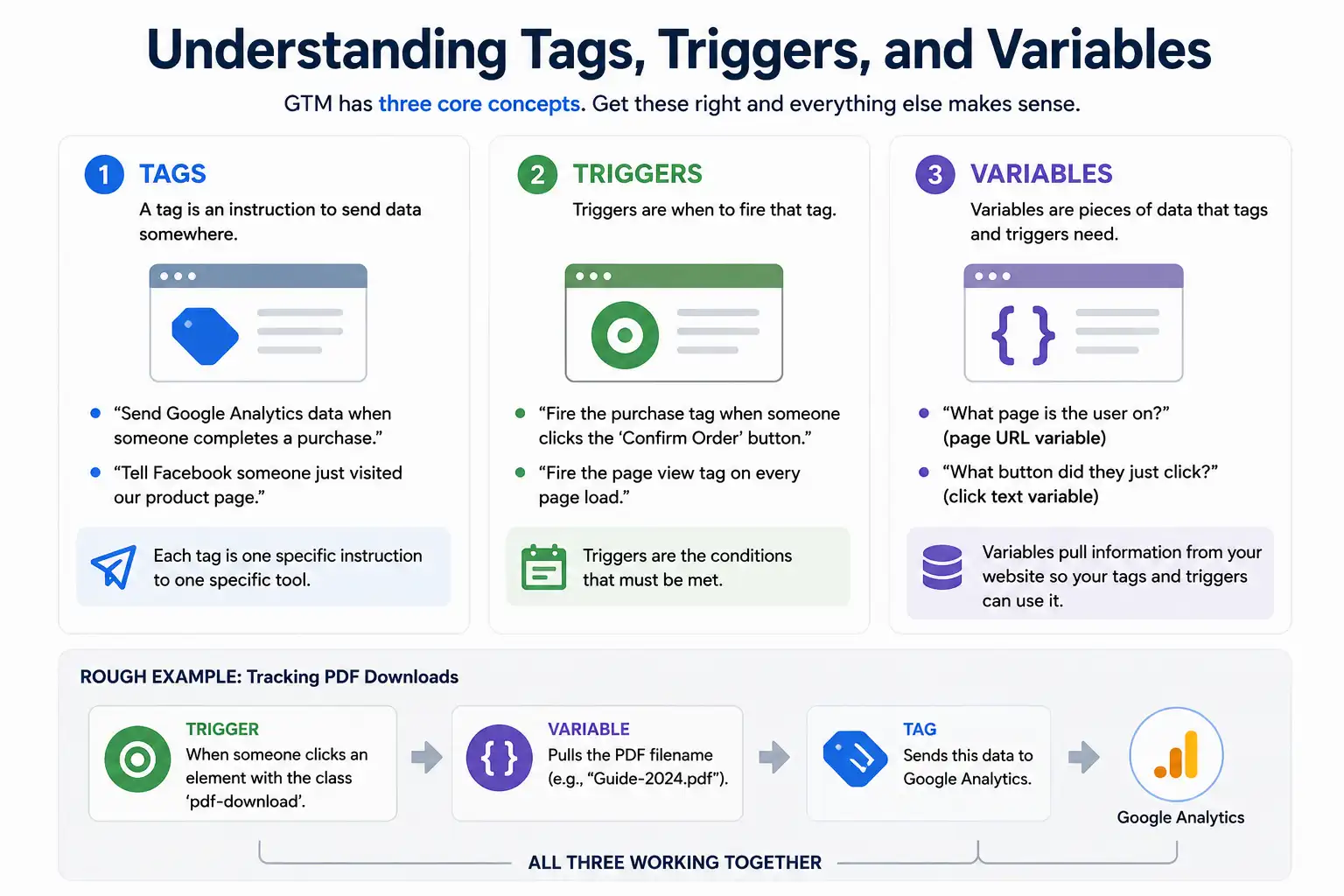
GTM has three core concepts. Get these right and everything else makes sense. Get them wrong and you’ll be confused forever.
1. Tags
A tag is an instruction to send data somewhere. “Send Google Analytics data when someone completes a purchase.” “Tell Facebook someone just visited our product page.” Each tag is one specific instruction to one specific tool.
2. Triggers
Triggers are when to fire that tag. “Fire the purchase tag when someone clicks the ‘Confirm Order’ button.” “Fire the page view tag on every page load.” Triggers are the conditions that must be met.
3. Variables
Variables are pieces of data that tags and triggers need. “What page is the user on?” (page URL variable). “What button did they just click?” (click text variable). Variables pull information from your website so your tags and triggers can use it.
Rough example: You want to track when someone downloads your PDF. Your trigger is “when someone clicks an element with the class ‘pdf-download'”. Your variable pulls the PDF filename. Your tag sends this data to Google Analytics. All three working together.
Common Tags You’ll Actually Use
You don’t need to learn every tag available in Google Tag Manager. Start with the most commonly used tags that power analytics, conversion tracking, and marketing campaigns. Once these are in place, you’ll have the data needed to measure performance and make informed marketing decisions.
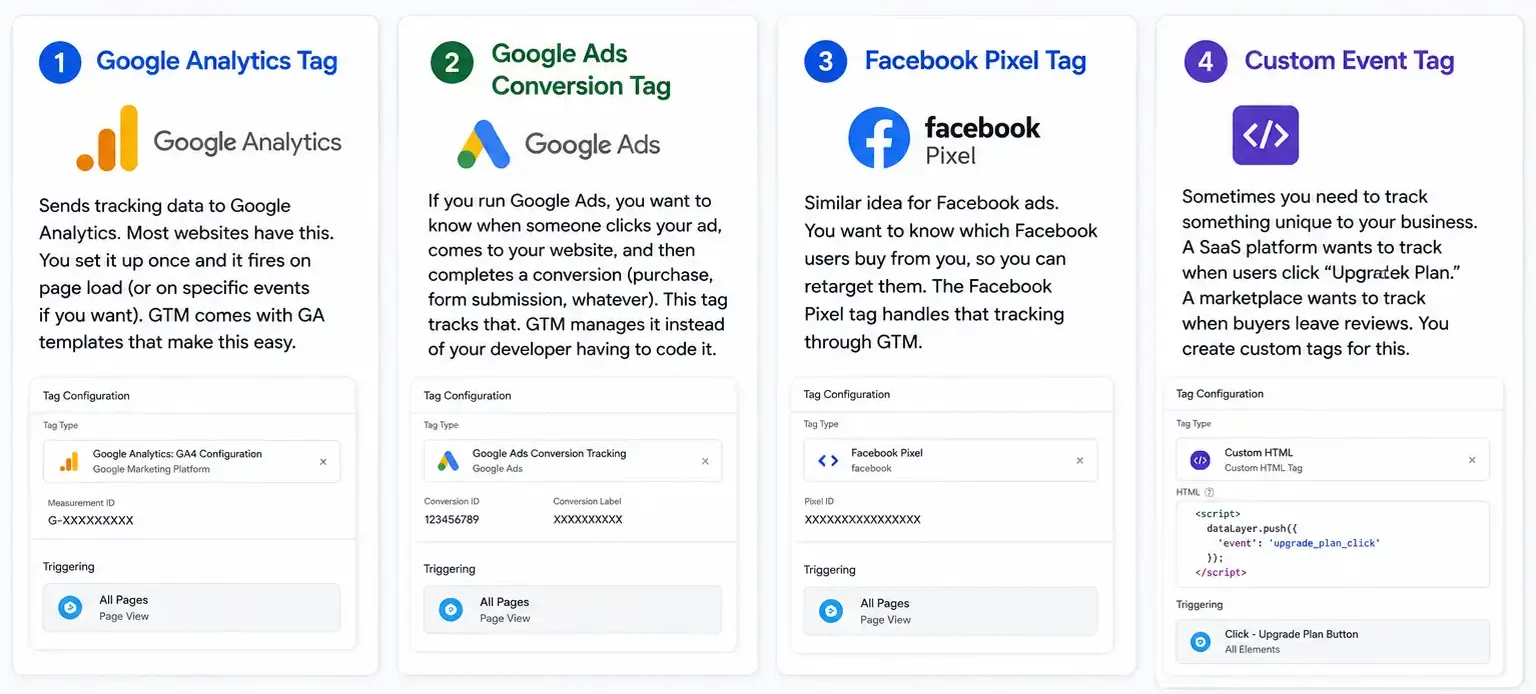
Google Analytics Tag
Sends tracking data to Google Analytics. Most websites have this. You set it up once and it fires on page load (or on specific events if you want). GTM comes with GA templates that make this easy.
Google Ads Conversion Tag
If you run Google Ads, you want to know when someone clicks your ad, comes to your website, and then completes a conversion (purchase, form submission, whatever). This tag tracks that. GTM manages it instead of your developer having to code it.
Facebook Pixel Tag
Similar idea for Facebook ads. You want to know which Facebook users buy from you, so you can retarget them. The Facebook Pixel tag handles that tracking through GTM.
Custom Event Tag
Sometimes you need to track something unique to your business. A SaaS platform wants to track when users click “Upgrade Plan.” A marketplace wants to track when buyers leave reviews. You create custom tags for this.
Setting Up Your First Tag
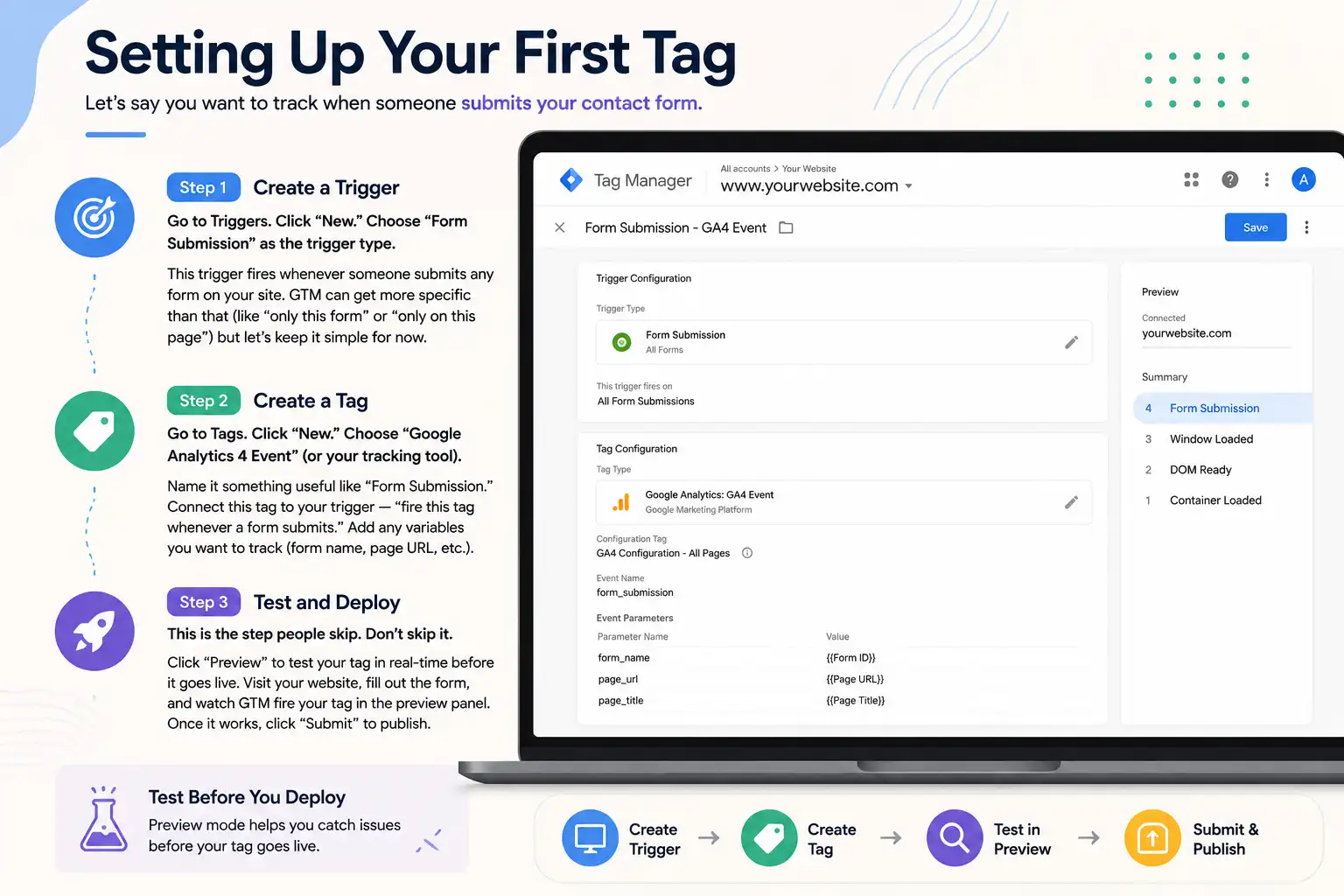
Let’s say you want to track when someone submits your contact form.
Step 1: Create a Trigger
Go to Triggers. Click “New.” Choose “Form Submission” as the trigger type. This trigger fires whenever someone submits any form on your site. GTM can get more specific than that (like “only this form” or “only on this page”) but let’s keep it simple for now.
Step 2: Create a Tag
Go to Tags. Click “New.” Choose “Google Analytics 4 Event” (or your tracking tool). Name it something useful like “Form Submission.” Connect this tag to your trigger — “fire this tag whenever a form submits.” Add any variables you want to track (form name, page URL, etc.).
Step 3: Test and Deploy
This is the step people skip. Don’t skip it. Click “Preview” to test your tag in real-time before it goes live. Visit your website, fill out the form, and watch GTM fire your tag in the preview panel. Once it works, click “Submit” to publish.
Events You Should Be Tracking
Basic pageviews only tell you that someone visited your website—they don’t reveal how visitors interacted with it. Event tracking captures meaningful user actions, helping you understand engagement, identify friction points, and measure the interactions that lead to conversions.
1. Scroll Depth
How far down your page do people scroll? Not everyone who lands on your page reads the whole thing. Tracking scroll depth tells you if your content is engaging. GTM can track when someone scrolls 50%, 75%, 100% down a page.
2. Outbound Link Clicks
When someone clicks a link to leave your website, that’s valuable data. You know they engaged enough to click something. Tracking this shows which external resources people find most useful.
3. Video Plays
If you have videos on your site, are people actually watching them? Track play events, pause events, 25/50/75% completion. This tells you if your video content is working or if people bounce immediately.
4. Download Clicks
Someone downloaded your PDF guide? That’s a micro-conversion. Track it. You might not count it as a lead yet, but it’s someone showing interest.
5. Error States
Sometimes form submission fails. Sometimes checkout breaks. Tracking these errors tells you where your site has problems. You can fix issues faster if you know they’re happening.
Testing Your Tags
This is mandatory. Always test before publishing.
GTM has a Preview mode. Click it, then visit your website. You’ll see a debug panel at the bottom showing every tag that fires, every trigger that activates, everything. Interact with your site — click buttons, submit forms, click links. Watch the panel to confirm your tags are firing correctly.
You should see the tags you expect to see. If a tag is missing, or if a tag is firing when it shouldn’t, fix it before publishing. Deploying broken tracking screws up your data for months.
Organising Your GTM Workspace
You’ll end up with dozens of tags, triggers, and variables eventually. Without organisation, it becomes impossible to manage. Here’s the system that works.
1. Name Everything Descriptively
Not “Tag 1” or “Trigger A.” Name them so anyone can understand what they do. “Form Submission – Contact Form” is better than “Form.” “Page View – All Pages” is better than “GA Tag.”
2. Use Folders for Categories
GTM lets you organise tags into folders. Create folders like “Google Analytics,” “Facebook,” “Conversions,” “Events.” Moving related tags into folders makes the interface way less overwhelming.
3. Document Your Setup
Keep a spreadsheet somewhere documenting what each tag does, why you created it, when it was deployed. Future you will thank past you when you need to update something six months later and can’t remember why that weird trigger exists. This documentation discipline is the same one that keeps any digital marketing strategy from becoming a black box that only one person understands.
Common GTM Mistakes
Not verifying installation. You put the GTM container ID on your site, but you don’t confirm it’s actually working. Weeks pass. Then you realise the code didn’t install correctly and you’ve been collecting zero data.
Creating tags without triggers. A tag sitting there with no trigger never fires. It’s just dead weight in your system. Always connect tags to triggers.
Using overly broad triggers. A trigger that says “fire on all page loads” might accidentally fire when it shouldn’t. Get specific with your triggers. Specify pages, specific elements, specific conditions.
Forgetting to test. The biggest mistake. You set up a tag, publish it immediately, and then realise three days later that the tag is firing twice on every page. Test first.
GTM + Google Analytics
Google Analytics is where the data lives. GTM is how the data gets there. GA is the reporter. GTM is the delivery mechanism.
You can use GA without GTM — many small sites do. But GTM makes GA way more powerful because you can track custom events without code changes. You can test different tracking setups before deploying. You can update tracking without bothering your developer.
For a deeper dive on analytics setup, check our guide on setting up Google Analytics.
When GTM Isn’t Enough
GTM handles most web tracking. But some things need backend tracking — when someone makes a purchase in your system and you need to tie it back to their original ad click, that happens server-side, not through GTM.
GTM also doesn’t handle privacy and compliance automatically. If you’re in the EU, you need consent management before tracking. GTM can integrate with consent tools, but it’s not built-in.
For complex ecommerce implementations, you usually need a developer in the mix. GTM gets you 80% of the way there on its own, but the last 20% often requires coding.
Best Practices for Long-Term GTM Health
A well-organized Google Tag Manager container is easier to maintain, troubleshoot, and scale as your website grows. Following a few best practices helps prevent tracking errors, keeps your data accurate, and ensures your team can confidently manage tags without creating unnecessary complexity.
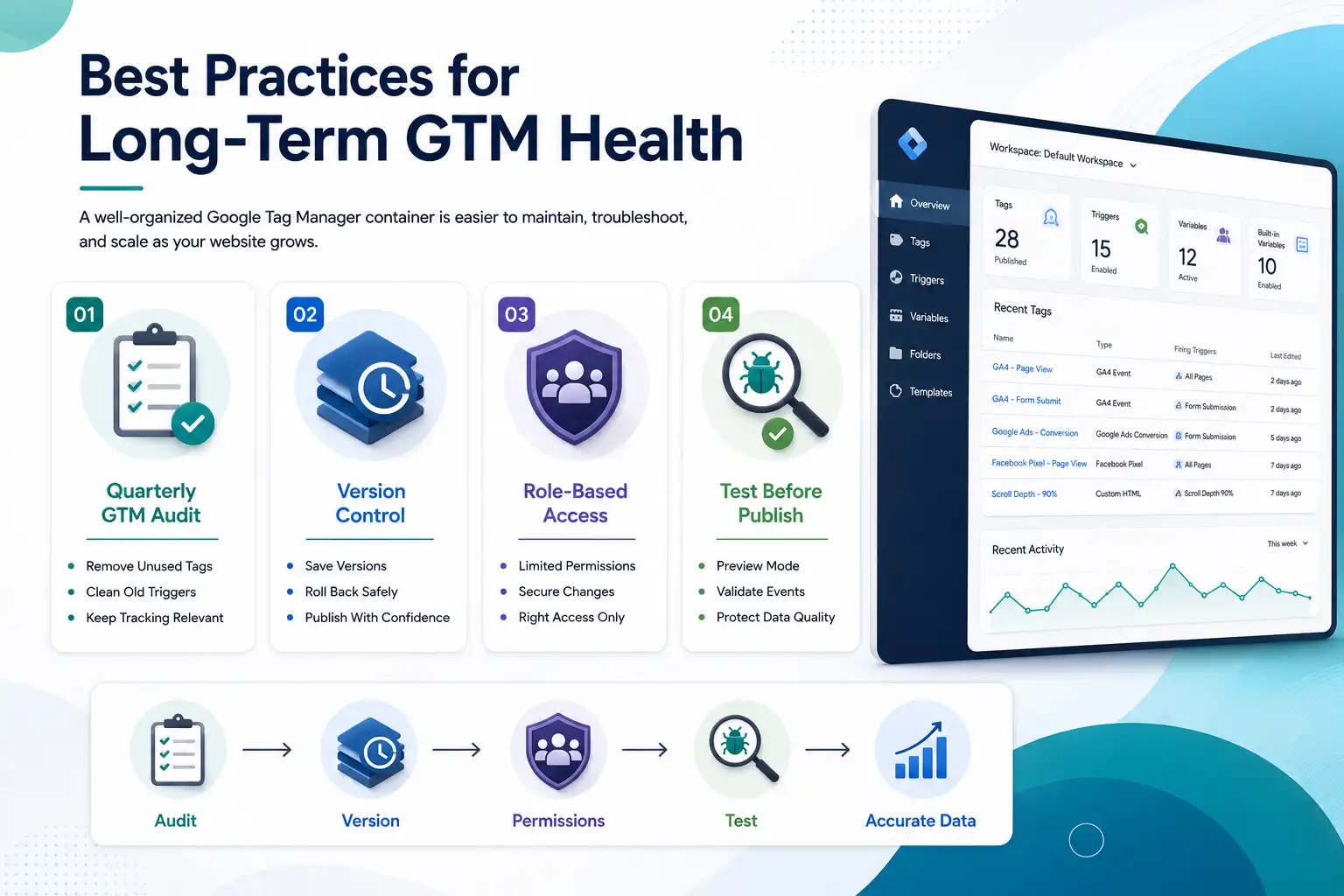
Audit Your GTM Every Quarter
Remove unused tags. Clean up old triggers. Check that everything you’re tracking is still relevant. A GTM workspace that never gets cleaned becomes a graveyard of old experiments and failed campaigns.
Version Control Your Container
GTM automatically saves versions of your container. Before any major change, know how to revert to a previous version if something breaks. You can’t undo a bad publish on live tracking data, so caution matters.
Give Team Members Limited Access
GTM lets you assign different permission levels. Your analytics person doesn’t need to publish changes. Your web team might not need to edit GA tags. Limit access based on what people actually need to do.
Train Your Team on Testing
Every person who touches GTM should understand preview mode and testing. A single person deploying bad tracking affects your entire data set for weeks.
Moving Beyond Basic Tracking
Once you’re comfortable with GTM basics, there are advanced things you can do. Cross-domain tracking if you have multiple websites. Tracking across different subdomains. User ID tracking. Server-side tracking for privacy-compliant setup.
These are beyond this guide’s scope, but they’re all possible with GTM. As your needs grow, GTM grows with you.
We’ve worked on technical tracking implementations for e-commerce brands, lead-gen sites, and SaaS platforms. The principles are similar — GTM manages the front-end, your analytics strategy handles the interpretation.
The Real Value of GTM
Here’s what actually matters. GTM lets your marketing team be independent. You don’t have to wait for a developer to add tracking code. You can test new events, new campaigns, new conversions without code changes. That speed is worth the learning curve.
It also enforces consistency. Everyone’s using the same tracking rules, the same events, the same data structure. When your analytics data comes from multiple people editing code directly, inconsistencies creep in. GTM prevents that.
If you’re managing marketing for any business that cares about data, GTM is worth learning. It’s free, it’s powerful, and it gets better the more you use it.
| Approach | Best for | Watch out for |
|---|---|---|
| DIY | Small teams, tight budgets | Slow ramp-up, trial-and-error |
| Freelancer | Specific project bursts | Inconsistency, limited ownership |
| Agency | Ongoing work, senior input | Higher retainer, less control |
Quick checklist before you start:
- Define the one thing you want: leads, sales, awareness — pick one.
- Baseline your numbers: write down where you are today.
- Pick a 90-day window: nothing moves in 2 weeks.
- Agree on success metrics: with whoever is paying the bill.
- Set up proper tracking: GA4, UTMs, call tracking.
- Review monthly: kill what doesn’t work, double down on what does.
The Bottom Line
If you take one thing from this: google tag manager setup guide for marketers rewards patience and specificity, not volume or clever tricks. Start small, measure honestly, fix what breaks, and compound what works. The brands doing this well in India aren’t smarter — they’re just consistent. Need a hand with this for your business? Talk to us.
Need Help Setting Up Proper Tracking?
We’ve built out GTM implementations for 100+ brands across India. Complex tracking, multi-tool setups, analytics architecture — we handle it. Let’s talk about getting your data right.
FAQs
-
What is Google Tag Manager used for?
Ans.Managing all your tracking codes from one place instead of editing website code directly. You can track Google Analytics, Facebook Pixel, conversions, custom events — all without developer help after initial setup. -
Is Google Tag Manager free?
Ans.Free. Completely free. Google doesn't charge for GTM itself. Some integrations with premium tools cost money, but core GTM functionality is always free. -
Do I need GTM if I have Google Analytics?
Ans.Not required, but it makes GA way more powerful. You can set up custom tracking, test changes before deploying, and manage multiple tools without code edits. Most growing businesses find it saves time and errors.
Author Details

Latest Posts
-
 24 / Sep
GMB Optimisation Google Business Profile Optimization Guide 2026
24 / Sep
GMB Optimisation Google Business Profile Optimization Guide 2026 -
 23 / Sep
Search Engine Optimization Programmatic SEO: Template + Data Model Explained
23 / Sep
Search Engine Optimization Programmatic SEO: Template + Data Model Explained -
 22 / Sep
Conversion Rate Optimization Conversion Rate Optimization: A Practical Guide
22 / Sep
Conversion Rate Optimization Conversion Rate Optimization: A Practical Guide -
 21 / Sep
Whatsapp Marketing WhatsApp Marketing for Indian SMBs
21 / Sep
Whatsapp Marketing WhatsApp Marketing for Indian SMBs -
 19 / Sep





Related Knowledge